
Tracking Domain Setup: A DNS-First Guide for Marketers and IT
Tracking Domain Setup: A DNS-First Guide for Marketers and IT
Set a short dedicated subdomain such as track.yourdomain.com, point a CNAME record at your tracking provider’s host, and verify it in the vendor dashboard. That’s the entire job in one sentence. Before you touch DNS, gather three things: access to your DNS provider (Cloudflare, GoDaddy, Route 53, whatever you’re on), the exact subdomain you want to dedicate to tracking, and the CNAME (and sometimes TXT) value your vendor generates for you.
Two checks matter more than people expect. First, confirm your provider auto-issues an SSL certificate for the new hostname, since browsers and inboxes both flag unencrypted redirect links. Second, if you’re on Cloudflare or a similar DNS proxy, turn off proxying for that record before you try to verify it. Skipping either step is the most common reason a tracking domain setup stalls out at “pending” for hours.
- DNS account access with edit rights on the parent domain
- The subdomain name you’re reserving for tracking
- The vendor’s CNAME target and, if required, a TXT ownership token
Pro Tip: Drop the TTL on your new record to 300 seconds before you start. It won’t speed up global propagation, but it makes re-checks and fixes much faster while you’re mid-verification.
Key Takeaways
A correctly configured tracking domain requires a dedicated subdomain, a verified CNAME, proxying disabled during setup, and SPF/DKIM alignment to protect deliverability.
| Point | Details |
|---|---|
| Use a dedicated subdomain | Never point the root domain at a tracking host; use something short like track.yourdomain.com. |
| Disable proxying during verification | Cloudflare’s orange-cloud proxy blocks vendor DNS checks and is the top cause of stuck verification. |
| Watch for CAA conflicts | A restrictive CAA record on your root domain can silently block SSL certificate issuance. |
| Align with your sending domain | Match the tracking subdomain to your sending subdomain structure to protect DMARC alignment. |
| Hand off ongoing management | Lickfold’s managed platform maintains domain reputation and inbox warm-up after initial DNS setup is complete. |
Table of Contents
- What Is a Tracking Domain, and Why Does It Matter?
- How Do You Set Up a Custom Tracking Domain?
- What Do the Verification Statuses Mean?
- Aligning Tracking Domains With SPF, DKIM, and DMARC
- Why Does Tracking Domain Verification Fail?
- What Naming and Rollout Practices Work Best?
- What Should an Operational Checklist Look Like?
- What Does This Mean for Your Outbound Strategy?
- Get Your Outbound Infrastructure Handled End to End
- Where to Verify Vendor-Specific Steps
- Frequently Asked Questions
- Sources
What Is a Tracking Domain, and Why Does It Matter?
A tracking domain is a subdomain you control that sits between a recipient’s click and your analytics platform, rewriting links and serving open-tracking pixels under your own hostname instead of the vendor’s generic one. Click track.yourbrand.com/abc123 and the request routes through your provider’s infrastructure, logs the event, then forwards the visitor to the real destination.
This matters for two practical reasons. Branded hover URLs build trust, since recipients see your domain in the link preview instead of a shared vendor string that’s been recycled across thousands of other senders. And isolating your links onto a domain you own protects your sender reputation: if another company on the same shared tracking domain gets blocklisted, you don’t go down with them.
- Hides the vendor’s shared hostname, replacing it with your brand
- Separates your click/reputation data from every other customer on that platform
- Lets you apply your own SSL certificate instead of relying on a shared one
Modern email clients increasingly expect HTTPS on every link, and most providers now provision certificates automatically once DNS verification completes. Skip that step and links can render with security warnings, which kills click-through rates fast.
How Do You Set Up a Custom Tracking Domain?
The core of a custom tracking domain setup is five sequential steps. Do them in order and most setups finish in under an hour of active work, even though DNS propagation can stretch the timeline further.
- Pick a short, brand-consistent subdomain. Something like
track.,links., orgo.prefixed to your domain works well. Avoid long or cryptic strings. Never point the root domain itself at a tracking host, since that risks breaking your existing site DNS and mail configuration. - Add the CNAME record. In your DNS provider’s console, create a new CNAME with the Host/Name field set to your chosen subdomain and the Value/Target field set to the exact hostname your vendor gave you. Klaviyo, for instance, walks customers through both an automatic flow tied to an existing branded sending domain and a manual flow where you paste the CNAME yourself. Some registrars want the full hostname in the Name field (
track.yourdomain.com) while others want just the subdomain part (track), so check the registrar’s own formatting notes before saving. - Add a TXT record if your vendor requires ownership verification. MailChannels documents this pattern clearly: a TXT record carrying an ownership token, paired with a CNAME pointing to their tracking host. Copy the token value exactly, including any prefix or path segment the vendor specifies.
- Disable DNS proxying if you’re on Cloudflare. The orange-cloud proxy setting reroutes traffic through Cloudflare’s edge network, which hides the actual CNAME target from your vendor’s verification checker and causes it to fail every time. Switch the record to “DNS only” (the gray cloud) while verifying, and only re-enable proxying afterward if your vendor explicitly supports proxied records.
- Trigger verification in the vendor dashboard. Choose automatic setup if your provider offers it, since that path provisions records on your behalf and cuts down on typos. Otherwise, save your manual entries and click whatever “verify” or “check DNS” button the dashboard provides.
Pro Tip: Make the change during a low-traffic window and tell whoever owns customer support that links might briefly misbehave. A five-minute DNS edit occasionally takes a couple of hours to fully propagate, and you don’t want a support ticket queue lighting up over it.
What Do the Verification Statuses Mean?
Most platforms cycle a new tracking domain through five or six states, and knowing what each one actually means saves you from panicking over a status that’s perfectly normal.
- Pending — the record has been saved in the vendor’s system but no DNS lookup has run yet.
- Verifying — the vendor is actively querying public DNS for your CNAME or TXT record.
- Action required — something’s misconfigured; usually a wrong target, a missing record, or active proxying.
- Failed — verification attempts have exhausted retries without finding the expected record.
- Verified — DNS resolves correctly, but SSL certificate issuance may still be in progress.
- Active — DNS and SSL are both confirmed, and the domain is live for tracking traffic.
SSL provisioning usually happens automatically once DNS verification succeeds, often through a certificate authority the vendor manages behind the scenes. If a certificate stays pending for more than a few hours, check for CAA records on your root domain. A CAA record restricts which certificate authorities may issue certs for your domain, and if it doesn’t explicitly allow the authority your vendor uses, issuance fails silently. An allow rule typically looks like 0 issue pki.goog or the equivalent for your vendor’s CA, though the exact value depends on which authority they use.
Run a public lookup through whatsmydns.net or your terminal’s dig command to confirm what’s actually resolving before you assume the vendor’s checker is broken. Propagation is usually done within minutes, but can occasionally take up to 48 hours depending on your registrar’s TTL settings and upstream caching.
Aligning Tracking Domains With SPF, DKIM, and DMARC
A tracking domain that isn’t aligned with your sending domain can quietly undermine your own authentication setup, which is why vendors consistently push customers toward dedicated subdomains rather than root-level records. Using a subdomain isolates the tracking configuration from your root domain’s SPF and DKIM policies entirely, so a misconfigured tracking CNAME can’t accidentally interfere with mail authentication.
For best DMARC alignment, match the relationship between your tracking subdomain and sending subdomain. If you send from marketing.yourdomain.com, a tracking domain like track.marketing.yourdomain.com keeps everything under one authenticated branch rather than scattering hostnames across unrelated parts of your DNS.
- Confirm DKIM signing is active and correctly configured for your actual sending domain
- Keep a single SPF record authorizing all your legitimate senders, since multiple SPF records break validation
- Run DMARC in monitoring mode first so you can catch alignment issues before enforcing a stricter policy
Why Does Tracking Domain Verification Fail?
Most failures trace back to one of four causes, and diagnosing them takes minutes if you know where to look.
- Wrong CNAME target. Compare the value character-for-character against what the vendor dashboard shows, watching for a trailing dot or a truncated subdomain.
- Active proxying. Cloudflare’s orange cloud is the single most common cause of a stuck “action required” status. Switch to DNS-only mode and re-verify.
- CAA conflicts. If your root domain has a restrictive CAA record, add an allow entry for your vendor’s certificate authority or SSL issuance will keep failing.
- Multiple or conflicting SPF records. These break authentication independent of your tracking setup but often surface at the same time, since teams tend to audit DNS holistically.
Use whatsmydns.net or dig CNAME track.yourdomain.com from your terminal to see exactly what’s resolving from multiple global locations before assuming the vendor’s system is at fault.
Pro Tip: If your DNS checks out clean but the vendor still shows a failure, wait one full propagation cycle (up to a few hours) before opening a support ticket. Support teams often re-run verification manually, and a fresh DNS snapshot usually resolves it without back-and-forth.
What Naming and Rollout Practices Work Best?
Keep subdomain names short, boring, and unmistakably tied to your brand. Something like go. or links. reads as legitimate; a random string of characters reads as suspicious to both spam filters and recipients glancing at a hover preview.
Test the new domain in a staging environment or with a small internal send before rolling it out to your full list. If you run affiliate or partner links through the same anchor text and link strategy as your outbound campaigns, coordinate the cutover with anyone using the old domain so links don’t break mid-campaign, a step Impact’s documentation calls out specifically for partner-heavy programs.
- Keep the subdomain short and aligned with your sending subdomain
- Test in staging, then assign the domain to a live program only after a clean send
- Set a calendar reminder to check SSL expiry and DNS integrity every quarter
Pro Tip: Automatic provisioning, where your platform supports it, removes most of the manual typo risk that causes failed verifications. If you’re managing DNS for more than a handful of sending domains, an automated flow beats hand-typing CNAME values every time.
What Should an Operational Checklist Look Like?
Here’s the ticket template Lickfold’s team uses internally before opening any tracking domain task, adapted for engineers who want a copy-paste starting point.
- DNS host/provider: _____
- Subdomain reserved for tracking: _____
- CNAME target from vendor: _____
- TXT ownership token (if required): _____
- Proxying disabled: yes/no
- Verification status confirmed: pending / verifying / verified / active
A tracking domain that fails silently costs more than the ten minutes it takes to configure correctly. Most of the deliverability issues we see trace back to a proxied CNAME or a missing CAA allow rule, not a broken platform.
Once DNS is stable and verified, that’s the natural handoff point to a managed service for ongoing inbox warm-up, reputation monitoring, and qualified lead handoff rather than re-checking DNS every time a campaign scales.
What Does This Mean for Your Outbound Strategy?
The conventional advice on tracking domains treats it as a five-minute checkbox. It isn’t, and treating it that way is how teams end up with degraded deliverability three months later that nobody can trace back to a proxied CNAME record from a rushed Tuesday afternoon setup.

What actually matters is alignment, not just activation. A tracking domain that’s technically “verified” but poorly aligned with your sending subdomain structure still creates friction for DMARC evaluation down the line. The setup working today doesn’t mean the architecture is sound.
What I’d prioritize first: get the subdomain relationship right before you worry about branding polish. go.yourdomain.com is fine. What’s not fine is bolting your tracking domain onto an unrelated branch of your DNS tree just because it was available. Teams that treat DNS architecture as a one-time task, rather than something to revisit as sending volume grows, are the ones who end up debugging a reputation problem that started as a five-minute oversight. Get the foundation right once, and you stop thinking about it.
Get Your Outbound Infrastructure Handled End to End
Getting the DNS right is only step one. Keeping a sending domain’s reputation healthy over months of outbound volume, at the scale a growing B2B pipeline demands, is a different job entirely, and it’s the one Lickfold specializes in. Instead of your team manually monitoring SSL expiry, warming up new inboxes, and re-checking authentication records every time you launch a new campaign, Lickfold’s AI-driven platform builds and maintains that infrastructure continuously, alongside the market research, decision-maker targeting, and multi-touch outreach that actually turns tracked clicks into qualified opportunities.

If you’ve just finished setting up a tracking domain and you’re thinking about what it takes to run outbound at real volume without burning your domain reputation, Lickfold is built for exactly that transition. You also get a partner path through LeadClarify’s AI revenue infrastructure if you need broader integration support. Book a walkthrough of Lickfold’s platform to see how your next campaign gets set up, warmed up, and monitored without adding another item to your team’s DNS checklist.
Where to Verify Vendor-Specific Steps
- Klaviyo’s click tracking guide for CNAME syntax, verification states, and CAA notes
- Impact’s tracking domain docs for the configure-verify-activate flow
- FTC’s CAN-SPAM compliance guide for commercial email rules
Frequently Asked Questions
What is a tracking domain in email marketing? It’s a subdomain you control that routes link clicks and pixel opens through your own hostname instead of a vendor’s shared one, giving you branded links and isolated sender reputation.
How long does tracking domain setup take? The DNS changes themselves take minutes. Propagation and vendor verification can add anywhere from a few minutes to 48 hours depending on your registrar’s TTL settings.
Why does my tracking domain say “action required”? Almost always a wrong CNAME target, active DNS proxying, or a CAA record blocking certificate issuance. Check all three before contacting support.
Do I need a TXT record for tracking domain setup? Some vendors, like MailChannels, require a TXT ownership token alongside the CNAME. Others verify with the CNAME alone. Check your specific provider’s dashboard for the exact requirement.
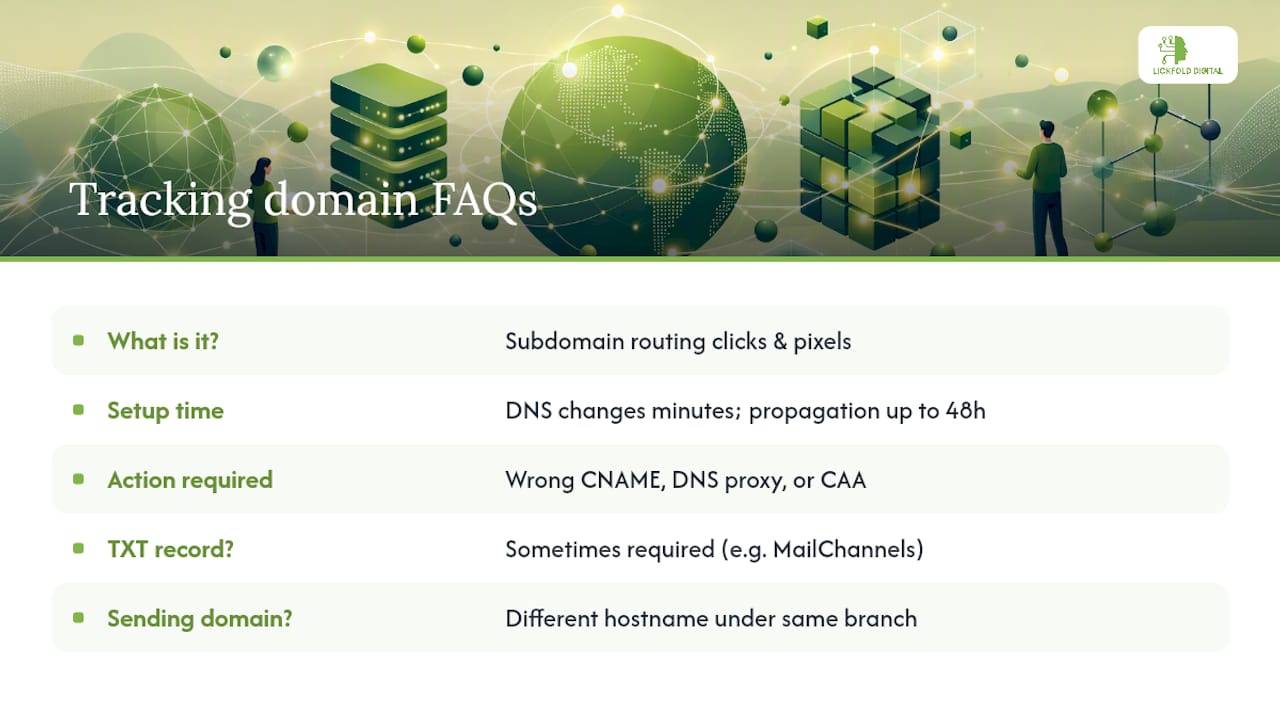
Should I use the same subdomain for tracking and sending?
Not the identical hostname, but aligning them under the same branch (like track.marketing.yourdomain.com under marketing.yourdomain.com) improves DMARC alignment and keeps DNS easier to audit.
Sources
- CAN-SPAM Act Compliance Guide for Business — FTC
- How to set up dedicated click tracking | Klaviyo Help Center
- Set Up a Custom Tracking Domain — Impact documentation
- Register custom tracking domain — MailChannels