
Log File Analysis for SEO: A Technical Marketer's Guide
Log File Analysis for SEO: A Technical Marketer’s Guide
Your server logs are the only record of what Googlebot, Bingbot, and now GPTBot actually did on your site — not what a crawler simulator guessed they’d do. That’s the entire case for log file analysis: it’s empirical evidence, not a sample.
Start here, today:
- Pull the last 30 days of raw access logs from your server, hosting panel, or CDN export.
- Filter to HTML requests only and strip out CSS, JS, and image hits.
- Verify Googlebot with reverse DNS and check for GPTBot, ClaudeBot, and PerplexityBot user-agents separately.
Search Console tells you what Google says it did. Crawl simulators tell you what a bot could theoretically find. Logs tell you what actually happened.
Pro Tip: Never trust a user-agent string alone. Anyone can spoof “Googlebot” in a request header — the IP behind it is what matters.
Key Takeaways
Log file analysis gives SEO professionals empirical, server-level evidence of crawler behavior that Search Console and crawl simulators cannot replicate.
| Point | Details |
|---|---|
| Logs are ground truth | Raw access logs record actual requests, making them more reliable than sampled Search Console data. |
| Retention window matters | Keep 30 to 90 days of logs, and set up log shipping if your server’s default rotation is shorter. |
| Verify before you trust | Use reverse DNS on the requesting IP, then forward-lookup the hostname, before trusting any bot’s user-agent. |
| Filter noise first | Strip static assets and health-checks before analysis, or crawl-activity metrics will be badly inflated. |
| Match tools to scale | Use command-line tools for small sites, Screaming Frog Log File Analyser for one-off audits, and Semrush or JetOctopus for continuous monitoring; Lickfold’s managed service covers the ongoing reporting layer for teams that want it handled. |
Table of Contents
- What Log File Analysis Means for SEO
- Server Access Log Fields and Formats You Need to Know
- How to Access, Collect, and Clean Your Log Files
- The Step-by-Step Log File Analysis Workflow
- Key Insights Logs Reveal That Other Tools Miss
- Turning Log File Findings Into SEO Fixes
- Which Log Analysis Tools Fit Your Site
- Verifying and Monitoring AI Crawlers Like GPTBot
- Sample CLI and Query Patterns for Log Analysis
- Where Log Analysis Fits in a Modern Technical SEO Practice
- Managed Log Monitoring Without Building the Pipeline Yourself
- Frequently Asked Questions
- Sources
What Log File Analysis Means for SEO
Log file analysis is the practice of parsing raw server access logs to see, request by request, how search and AI crawlers moved through your site. Every hit gets logged: the page requested, the timestamp, the status code returned, the bytes served, and the user-agent making the request. Nothing is sampled, throttled, or smoothed over the way Google Search Console’s Crawl Stats report tends to be.
The strategic value shows up fast once you start reading logs regularly:
- Ground-truth crawl evidence — you see exactly which URLs Googlebot fetched and how often, not an estimate.
- Faster error detection — 4xx and 5xx spikes and multi-hop redirect chains show up in logs before they show up anywhere else.
- Orphan and waste discovery — pages nobody links to internally but bots keep fetching, and high-value pages nobody bothers to fetch at all.
This matters most on large ecommerce catalogs, JavaScript-heavy front ends where rendering is a real question mark, and any site mid-migration where you need to confirm old URLs are dying off and new ones are picking up crawl activity. It’s also become the fastest way to check whether AI crawlers are reaching your content at all.
Server Access Log Fields and Formats You Need to Know
A single access log line typically carries eight pieces of data: client IP, timestamp, request URL, HTTP method, status code, response size, referer, and user-agent. That’s the raw material for everything downstream. Miss one field and you lose a diagnostic capability, response size in particular, since it’s how you catch rendering problems later.
Formats vary by where the log comes from:
- Combined Log Format — the Apache and Nginx default, human-readable, one line per request.
- W3C Extended — common on IIS, similar fields in a slightly different order.
- CDN exports — CloudFront and Fastly generate their own log formats, often gzip-compressed and split across many small files.
Retention is where most SEO teams get caught off guard. Default rotation on many servers keeps only 7 to 30 days of history before overwriting it. A 30-day window is the practical minimum for routine analysis, and 90 days gives you enough range for a real crawl-budget study across seasonal or weekly patterns. If your host rotates faster than that, set up log shipping to an external store before you need the history you don’t have.
How to Access, Collect, and Clean Your Log Files
Logs live in a few predictable places depending on your stack. Origin servers typically write to /var/log/nginx/ or /var/log/apache2/. Managed hosting platforms usually expose a download panel. If you’re behind a CDN, you’re pulling exports from CloudFront, Fastly, or similar, and possibly stitching origin and edge logs together to get the full picture.
- Decompress whatever archive format the logs arrived in (usually gzip).
- Merge files by date range into one working set, watching for timezone mismatches between origin and CDN timestamps.
- Run an initial pass to confirm the date range actually covers what you need before you start filtering.
Once the raw files are merged, clean them before you draw a single conclusion:
- Strip out static asset requests (CSS, JS, images) — leaving them in will massively inflate crawl activity metrics and bury the HTML patterns you actually care about.
- Remove internal health-check and monitoring pings; they’re not real crawler behavior.
- Decide whether you’re analyzing edge hits, origin hits, or both, and be consistent, since a CDN cache hit at the edge never reaches your origin server’s logs at all.
The Step-by-Step Log File Analysis Workflow
Once your data is clean, the workflow is a straight line from raw requests to prioritized action. Run it in order.
Step 1: Pick your time window. Thirty days is fine for spot-checking a specific issue. Ninety days is the right call for a full crawl-budget audit, especially on a site large enough that Google doesn’t visit every page weekly.
Step 2: Segment your URLs. Group by directory, template type, or parameter pattern rather than looking at flat page-by-page data. A single faceted-navigation template generating thousands of near-duplicate URLs is invisible until you segment; it’s obvious once you do.
Step 3: Verify your bots. Anyone can send a request with User-Agent: Googlebot in the header. Confirm the real thing with a two-way DNS check: reverse-lookup the requesting IP to confirm it resolves to a Google hostname, then forward-lookup that hostname to make sure it points back to the same IP. Do the same for AI crawlers where published IP ranges exist. Skipping this step means your entire dataset could include spoofed traffic pretending to be a search engine.

Step 4: Compute hit distribution. Count visits per URL group and cross-tab against status code. This is where crawl waste becomes visible: a directory getting hit 400 times a week that returns a 302 every single time is burning crawl budget for nothing.
Step 5: Cross-reference against Search Console and your sitemap. Pages in your sitemap that never show up in the logs are effectively invisible to crawlers regardless of what your internal linking suggests. Pages getting hit constantly but absent from Search Console’s index coverage report deserve a second look, since something is stopping them from converting a crawl into an indexed page.
Step 6: Prioritize by business impact, not just volume. A money page getting crawled once a month is a bigger problem than a thousand low-value filter URLs getting hit daily. Rank fixes by revenue exposure first, crawl waste second.
Pro Tip: Run steps 3 and 4 together the first time through. Bot verification without hit-distribution context tells you a crawler is real, but not whether it’s wasting its visits on pages that don’t matter.
- Keep a running log of which URL groups you’ve already investigated so re-analysis after a fix doesn’t start from zero.
- Export your segmented data before cross-referencing against Search Console; the join is easier in a spreadsheet or query tool than by eyeballing two dashboards.
Key Insights Logs Reveal That Other Tools Miss
Crawl frequency by itself tells a story. A page hit daily is one Google considers important or fast-changing. A page hit once every few weeks is one Google has deprioritized, correctly or not. Watching that frequency shift after a content update or an internal link change is one of the more reliable feedback loops in technical SEO.
Status codes and redirect chains are crawl-cost signals in disguise. Every hop in a redirect chain is logged as a separate request, so a URL that redirects three times before landing on its final destination is costing you three crawl events for one page view. Multiply that across a few thousand URLs after a sloppy migration and you understand why crawl budget disappears.
The clearest tell of a JavaScript rendering gap in AI crawler logs is a 200 status code paired with a tiny response size. GPTBot and similar crawlers fetch raw HTML; they don’t execute JavaScript, so a client-rendered page that looks fine in a browser can arrive at the crawler as an almost-empty shell.
Orphan pages surface the same way: pull your sitemap and internal link map, then compare that list against what’s actually being fetched. Anything crawlers never touch despite being indexable is either poorly linked internally or was never discovered in the first place.
Pro Tip: Sort successful requests by response size across your top templates once a quarter. It’s the fastest way to catch a rendering regression before it costs you rankings.
Turning Log File Findings Into SEO Fixes
Evidence without action is just a report nobody reads. Once you’ve segmented and prioritized, move through fixes in this order:
- Collapse redirect chains into single 301 hops. Every extra redirect step is wasted crawl budget and slower resolution for users.
- Fix 5xx hotspots immediately. Server errors on high-traffic URLs signal to crawlers that a page is unreliable, and repeated 5xx responses can suppress crawl frequency for weeks after the underlying bug is fixed.
- Reclaim backlinked 404s with targeted 301 redirects to the closest live equivalent, not a blanket homepage redirect.
Once the urgent fires are out, work through the medium-priority list: block low-value parameterized URLs through robots.txt or canonical tags, and prune or consolidate thin content that’s been quietly absorbing crawl attention for no return.
Validation is not optional. Re-run your log analysis weekly for four to six weeks after any fix, and check Search Console’s index coverage for movement in parallel. If nothing changes in either dataset after six weeks, the fix didn’t address the actual cause.
One guardrail worth repeating: don’t blanket-block a crawler just because it shows up frequently in your logs. Bots that bring referral traffic, or AI crawlers contributing to how your brand shows up in generative answers, are worth the crawl cost. Block based on evidence of waste, not based on an unfamiliar user-agent string.
Which Log Analysis Tools Fit Your Site
Tool choice comes down to site scale and how often you need to look. A ten-page brochure site doesn’t need the same setup as a marketplace with two million SKUs.
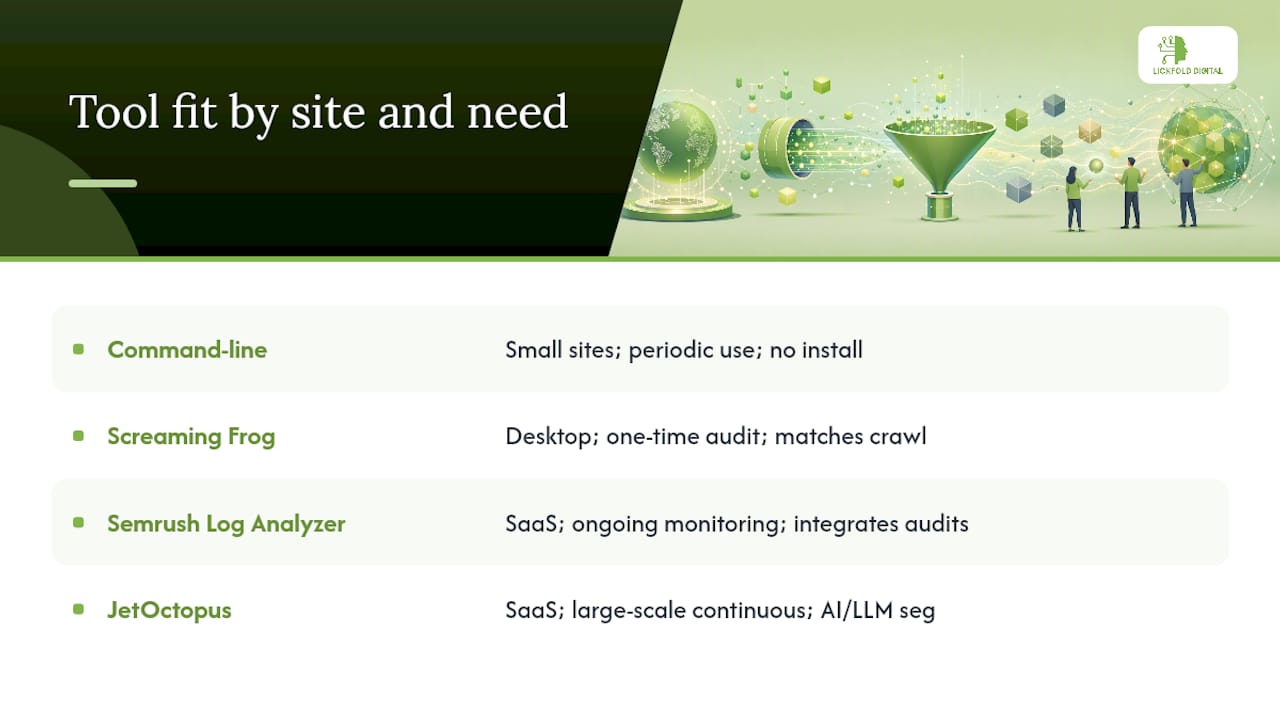
For small sites, command-line tools handle everything. A few lines of grep, awk, sort, and uniq will count hits per URL or isolate a specific bot’s activity without installing anything.
Screaming Frog Log File Analyser works well for ad-hoc desktop analysis. You import a log file, it parses and cross-references against a crawl, and you get a one-time detailed report. It’s not built for continuous monitoring, but for a single audit or a migration check, it’s fast to set up and doesn’t require ongoing infrastructure.
Semrush’s Log File Analyzer shifts the model toward ongoing monitoring, pairing log uploads with the rest of Semrush’s crawl and site-audit data so you’re not analyzing logs in isolation from your broader technical SEO picture.
JetOctopus goes further into continuous, large-scale monitoring, with dedicated segmentation for AI and LLM crawler traffic alongside traditional search bots, which matters increasingly as GPTBot and ClaudeBot activity becomes something worth tracking on its own.
Weigh each option against the same handful of questions: does it handle your site’s scale, does it work in real time or only on uploaded files, does it verify bots reliably, and does it integrate with Search Console or your CDN. Desktop tools are cheaper and fine for periodic audits; SaaS platforms cost more but remove the manual export-and-import cycle entirely.
Verifying and Monitoring AI Crawlers Like GPTBot
Bot verification isn’t optional anymore now that AI crawlers carry real weight for visibility in generative search results.
- Reverse DNS check. Look up the requesting IP, confirm it resolves to a legitimate hostname (Google’s crawlers resolve to
googlebot.com), then forward-lookup that hostname to make sure it points back to the same IP. - Filter for AI user-agents. Isolate GPTBot, ClaudeBot, and PerplexityBot into their own segment rather than lumping them in with generic bot traffic.
- Check response size on AI fetches. A healthy footprint looks like consistent 200 responses with full byte counts matching what a browser would receive. AI crawlers don’t run JavaScript, so a tiny response size on a page that should be content-rich is a rendering problem, not a crawler problem.
Pro Tip: Set an alert on sudden drops in AI crawler volume to a template, not just spikes. A drop often means something broke access before anyone noticed a ranking or citation change.
On some content-heavy sites, a substantial share of log volume comes from non-search-engine bot traffic once you count AI crawlers, scrapers, and monitoring tools together, which is exactly why isolating GPTBot and its peers into their own segment matters instead of lumping everything into a single “bot” bucket. Decide whether to allow or restrict an AI crawler based on what your logs actually show it doing, not on the crawler’s reputation alone.
Sample CLI and Query Patterns for Log Analysis
For a quick, small-site check, this counts Googlebot hits per URL from a standard Nginx access log:
grep "Googlebot" access.log | awk '{print $7}' | sort | uniq -c | sort -rn | head -20
To catch potential rendering shells, filter successful AI crawler fetches and sort by response size, since GPTBot and similar agents fetch raw HTML without executing JavaScript:
grep "GPTBot" access.log | awk '$9==200 {print $10, $7}' | sort -n | head -50
At scale, the same logic runs as a BigQuery aggregation across CDN log exports, grouping by URL, status code, and user-agent over a rolling date window instead of a single file.
- Export CDN logs daily to cloud storage (GCS or S3).
- Schedule ingestion into BigQuery or an equivalent warehouse on a recurring job.
- Query aggregated hits, joined against your sitemap or Search Console URL export, to surface pages that never appear in the crawl data at all.
Pro Tip: Keep your AI bot regex list current. New crawlers appear often enough that a pattern written six months ago will quietly miss traffic today.
Where Log Analysis Fits in a Modern Technical SEO Practice
When Search Console, a crawl simulator, and your logs disagree about what’s happening on a site, the logs win. They’re the only one of the three recording what actually occurred rather than a sample or a simulation.
That doesn’t mean every site needs a log pipeline running daily. A five-page local business site gets little from log analysis beyond an occasional sanity check. Large catalogs, sites mid-migration, and anything leaning on JavaScript rendering or programmatic page generation get outsized value, often enough to justify building automated exports from day one rather than pulling logs manually every time something looks off.
Start with a focused 90-day snapshot to answer a specific question. Once that snapshot proves useful, move to scheduled daily or weekly exports so the next problem shows up in a report instead of a ranking drop three weeks later.
Managed Log Monitoring Without Building the Pipeline Yourself
Running this workflow well takes ongoing attention: bot verification has to stay current as new AI crawlers appear, and someone has to actually read the weekly reports instead of letting them pile up. Lickfold’s technical SEO service handles that ongoing layer for teams that would rather see prioritized findings than build a BigQuery pipeline from scratch.

The setup covers log shipping configuration, Googlebot and AI-crawler verification through reverse DNS, weekly crawl reports segmented by URL group, and a prioritized remediation list ranked by business impact rather than raw hit volume. It pairs naturally with the content and outreach side of Lickfold’s platform, since crawl-budget fixes and lead-generation content work toward the same goal: pages that actually get found. To get started, share your site, hosting or CDN setup, and the time window you want analyzed, and onboarding typically starts from there. Check the current service plans for details, or request a free audit to see what your logs are already telling you.
Frequently Asked Questions
What is log file analysis in SEO? Log file analysis for SEO means reviewing raw server access logs to see exactly which pages search and AI crawlers requested, how often, and what status code the server returned, giving you evidence-based insight into crawl behavior instead of estimates.
How often should I run server log analysis? Run a full analysis quarterly at minimum, and weekly during and after a migration or a major fix rollout. Sites large enough to need continuous crawl-budget monitoring should move to automated daily or weekly exports.
How do I know if a crawler is really Googlebot and not spoofed? Reverse-lookup the requesting IP to confirm it resolves to a Google hostname, then forward-lookup that hostname to verify it points back to the original IP. Skipping either half of that check leaves spoofed traffic in your dataset.
Can log file analysis show whether AI crawlers like GPTBot can read my content? Yes. Sort successful GPTBot or ClaudeBot fetches by response size; consistent full-size 200 responses indicate they’re getting real content, while tiny response sizes on content pages point to a JavaScript rendering gap.
Do I need a paid tool, or can I analyze logs manually? Command-line tools handle small sites well. Screaming Frog Log File Analyser works for periodic desktop audits, while Semrush and JetOctopus fit ongoing monitoring at scale, particularly when AI crawler segmentation is a priority.
Sources
For deeper technical grounding beyond this guide, a few resources are worth bookmarking: